







































 NL
 PL
 DA
 SV
 CS
 EL
 FI
 NB
 RO
 HR
 HU
 SK
 SL
 BG
 ET
 IS
 LT
 LV
 MK
 SR
 UK
 ZH-SG
 ZH-TW
 ZH-HK
 ZH-MO

Outlook richtig einrichten
📧 ¿Cómo configurar su correo en Outlook usando POP3 o IMAP? Guía paso a paso
Tener su correo corporativo bien configurado en Outlook es clave para trabajar de forma segura, profesional y sin interrupciones. Ya sea que use POP3 o IMAP, aquí le explicamos todo lo que necesita saber para verificar y configurar correctamente su cuenta de correo.
🧩 ¿Cuál es la diferencia entre POP3 e IMAP?
Antes de comenzar, es importante entender qué protocolo usar según sus necesidades:
-
IMAP (recomendado):
Sincroniza su correo con el servidor. Todo lo que haga en Outlook (leer, mover, eliminar) se refleja en todos sus dispositivos. -
POP3:
Descarga los correos al dispositivo y los elimina del servidor (por defecto). Es útil si solo usará un equipo y quiere ahorrar espacio en el servidor.
🛠️ What information do you need to set up your email?
Before opening Outlook, make sure you have:
✔️ Email address (e.g.:[email protected])
✔️ Your account password
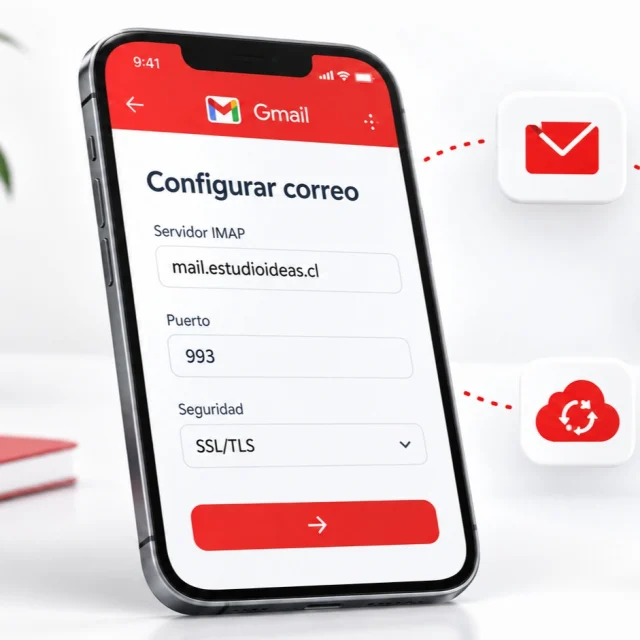
✔️ Incoming server (IMAP or POP3):mail.tudominio.cl
✔️ Outgoing server (SMTP):mail.tudominio.cl
✔️ Ports and security type:
-
IMAP: Port 993 (SSL)
-
POP3: Port 995 (SSL)
-
SMTP: Port 465 (SSL)
💡 This information may vary slightly depending on your provider. If you are a client of Estudio Ideas, we will provide it directly.
💻 Step-by-step account setup in Outlook
-
Open Outlook and go to:
Archivo > Información > Agregar cuenta -
In the window that appears, choose "Manual setup or additional server types" and click Next.
-
Select POP or IMAP and click Next.
-
Fill in the fields with your information:
User Information:
-
Name: [Your name or company]
-
Email address: [[email protected]]
Server Information:
-
Account type: POP3 or IMAP
-
Incoming mail server:
mail.tudominio.cl -
Outgoing mail server (SMTP):
mail.tudominio.cl
Login Information:
-
Username: [[email protected]]
-
Password: [Your password]
-
-
Click on More settings > Outgoing server, and check:
✅ “My outgoing server (SMTP) requires authentication”
✅ “Use the same settings as my incoming mail server” -
Go to the "Advanced" tab and configure the ports:
-
IMAP: 993 (SSL)
-
POP3: 995 (SSL)
-
SMTP: 465 (SSL)
-
-
Save the changes and click on Test account settings. If everything is correct, you will see a success message.
-
Click on Finish.
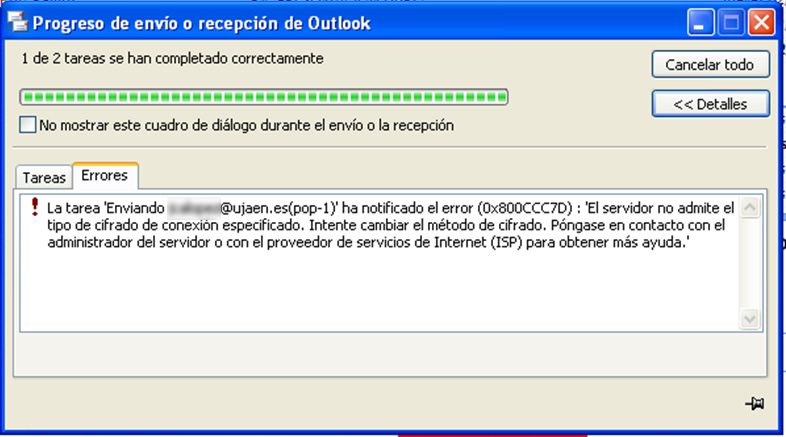
🔄 What if Outlook doesn't connect?
📌 Check:
-
Your internet connection
-
That the domain is active
-
That there are no errors in the username or password
-
Asegúrese de que la IP de su red no esté bloqueada por el servidor (puede verificar su IP aquí: https://estudioideas.cl/miip)
📲 ¿Necesita ayuda?
En Estudio Ideas configuramos su correo por usted. Si es cliente, solo escríbanos por WhatsApp al +56 9 8225 8056 o genere un ticket desde nuestra web.
🧠 Recomendaciones finales
-
Siempre use IMAP si accede al correo desde varios dispositivos (celular, notebook, etc.).
-
Si elige POP3,, active la opción de "dejar una copia en el servidor" para evitar perder correos.
-
Cambia su contraseña periódicamente por seguridad.


 Allgemeine Themen
 Neue Services
 Support
 Support